Note: This documentation is applicable exclusively to North America. If your app is not being distributed in North America, please contact Partner_Mgmt@sky.uk
Overview
As an approved partner, you are eligible to receive free rentals of supported X1 devices for you and your development team to test applications. X1 Development Devices are configured to work inside and outside of Comcast's footprint (for hardware specifications, see Device Specs. For a list of open source notices for X1 Devices, click here). These devices are used for development purposes only and thus will not have access to video services such as VOD or linear TV.
Device Limitations:
- X1 Development Devices are test devices, and some normal customer features may not function. For legal reasons the X1 Development Devices have linear TV and on demand services turned off. You may see errors like "cannot tune to channel" - this is normal for development devices.
- You will also not see your app in the apps menu in the correct customer facing editorial position or be able to see editorial promotions in the on demand menus. If you encounter any errors regarding "account activation," contact us for troubleshooting assistance.
- Once you and your team are complete with development and testing, you must return the device back to Comcast
- Only specified X1 devices and remotes can be ordered through the request process. Additional devices can be requested via your partner manager contact.
- Please be conscious and limit your order to only what is necessary, we reserve the right to deny excessive requests.
How To Request A Device:
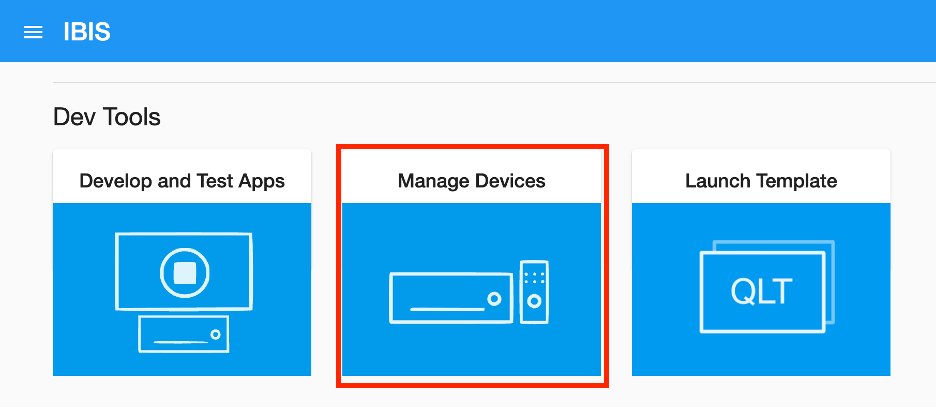
- Navigate to ibis.comcast.com and select Manage Devices - You will need access to IBIS
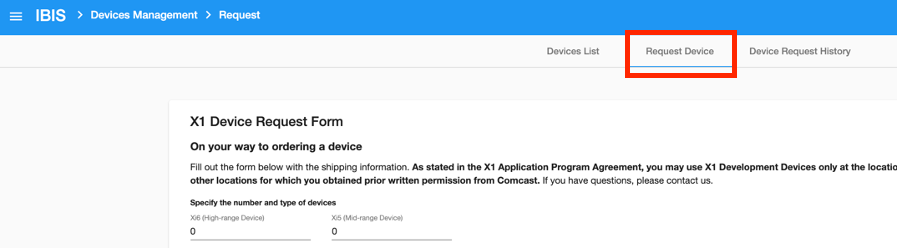
- Navigate to the Request Device Tab
- Fill out the X1 Device Request Form and press Submit when done
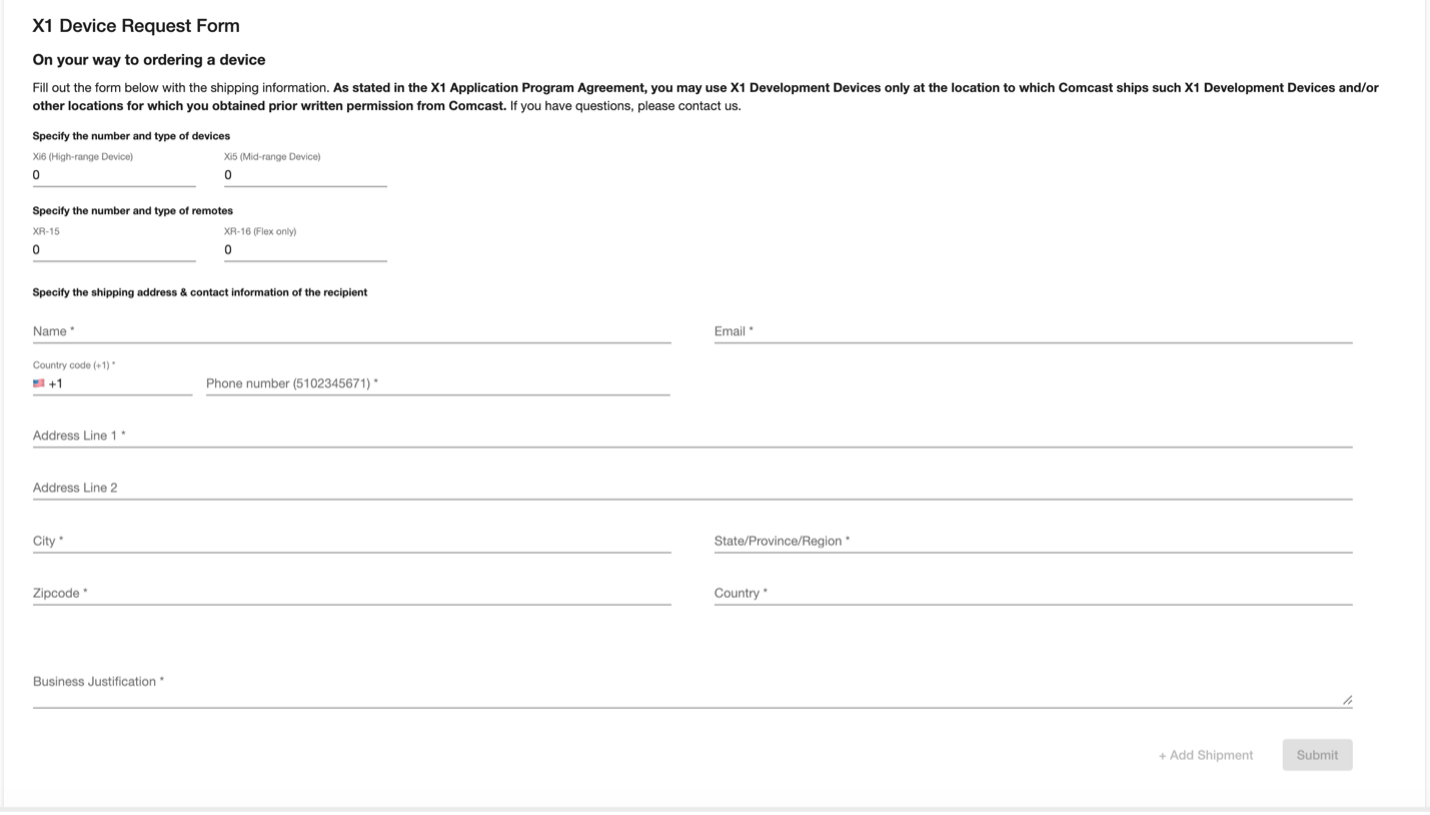
If you wish to request additional devices to another address and or individual, simply click Add Shipment
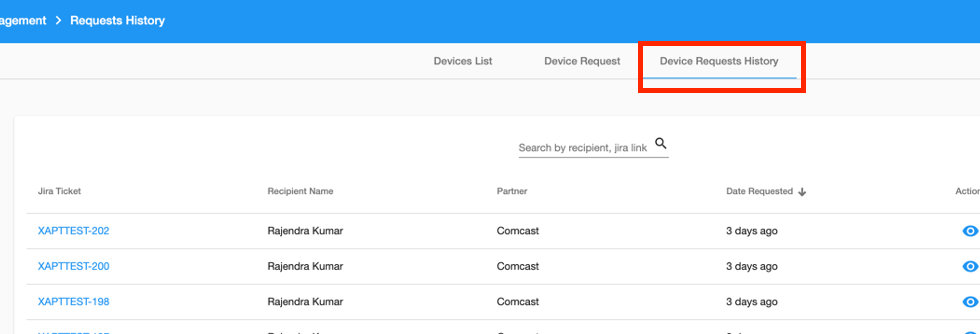
- To view the status of your requests navigate to Device Request History tab
Important:
Remember to register your organization in the portal before requesting an X1 Development Device.
Warning:
Comcast CANNOT provide access to developer tools on personal or business use X1 Platform devices/accounts. You must request an X1 Development Device through the portal, even if you have personal or business X1 Platform devices.
The form asks you for the following information:
-
Your shipping address
-
Your phone number
-
If you need a device that is 4k compatible.
Note:
You will receive a High-End Device if you require 4k video playback, and a Mid-Range Device if you do not. This will be your main device type for development.
There are multiple X1 set-top boxes. To test on the full range of devices, you can request time at a Comcast Certification Lab.
Using Your X1 Development Device:
You'll need an open connection to wired Ethernet to run your test devices. You'll need a network without any port filtering. Please plan on providing a open connection for the X1 Development Device at your development office. X1 Development Devices use numerous ports for access (including some random ports) so opening up specific ports on a local router for access will not work properly.
Please keep your device powered on and connected to the internet 24/7. The devices will need to call home to Comcast for firmware and OS updates throughout the development cycle.
Review the Remote Web Inspector and Memory Monitor pages for information on testing your app on your X1 Development Device.
X1 Remote:
You will receive a remote control along with your device. Detailed pairing instructions can be found here.
If you find your remote control is not working with your X1 Development Device you can try to re-pair the remote with your device. The remote will attempt to pair with any local device that is in range and turned on. If you run into issues, press the remote directly against the X1 Development Device you are attempting to pair it with and try again.
Device Information:
The X1 Development Device "About" screen and device sticker contain vital information about your X1 Development Device. To access the "About" page on your device, press the Voice button on your remote and say "About." Alternately, click the Xfinity button on your remote, then navigate to the Settings gear icon, then "About".
Please include the information on this screen when contacting us about your development device.
You can also see the device type, device ID, and device Mac Address by clicking on View Details for each device in your Device Dashboard (see the screenshot above).
International Shipping:
Shipping outside the United States may require additional information. The Partner Management team will contact you if more information is needed after you request a device.