Note: This documentation is applicable exclusively to North America. If your app is not being distributed in North America, please contact Partner_Mgmt@sky.uk
Getting Started with Platform Tools (Ibis)
Introduction
Ibis is a development tool and set of APIs that assist with building apps for the X1 ecosystem. Through Ibis, you can add your development devices, inspect their properties, view their operational status, and execute tests. Other features may be made available at later dates.
Getting Started
To get started, visit https://ibis.comcast.com and log in using the credentials you used to register for the developer portal.
Registering
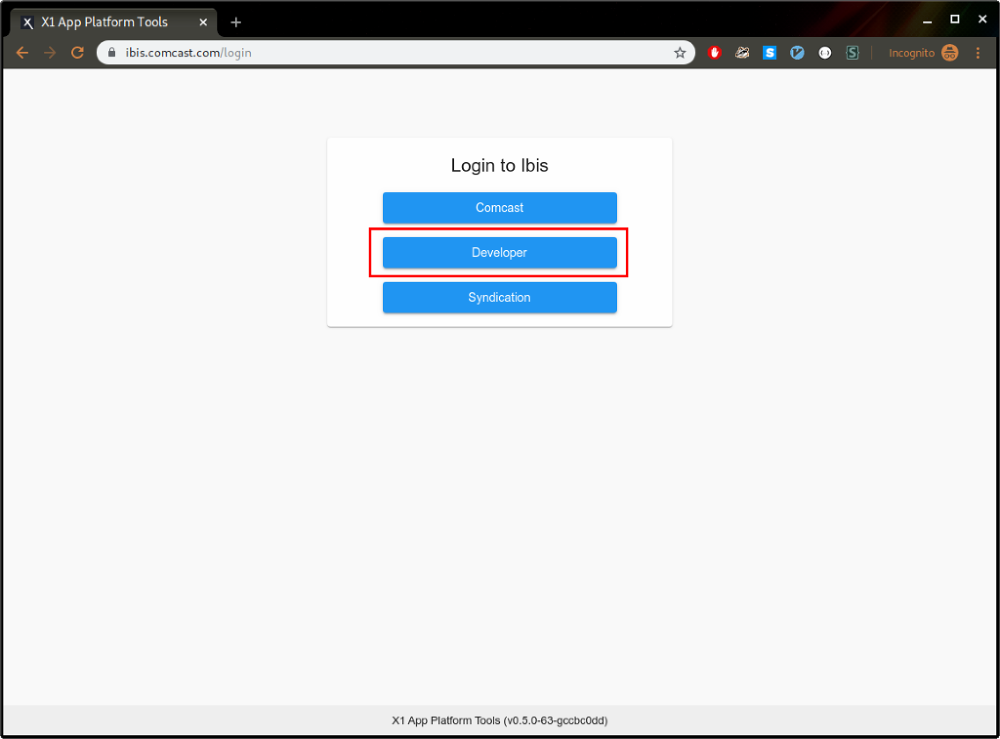
Go to https://ibis.comcast.com and select 'Developer'. From there, you can register a new account with your company email. Personal email addresses will not be accepted. Please note, IBIS requires SMS verification, so have a mobile phone available when registering.
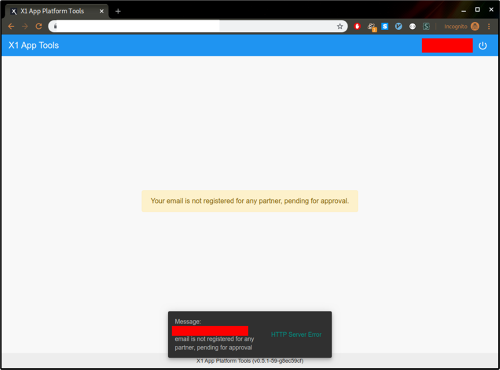
If your domain is not already approved for access, you’ll see a warning message like the one pictured below. You can send us a message and request to allow your domain through the contact form.
Note: You will need to be approved for access to the Developer Portal to use the IBIS Developer Tools. It may take up to 2 business days for your domain to be approved in IBIS after Developer Portal approval.
Adding a device
Note: If you have only received a XR16 remote, please ask your partner manager to manually add your device to IBIS. For more information on different remote types please refer to the Remote Specification documentation.
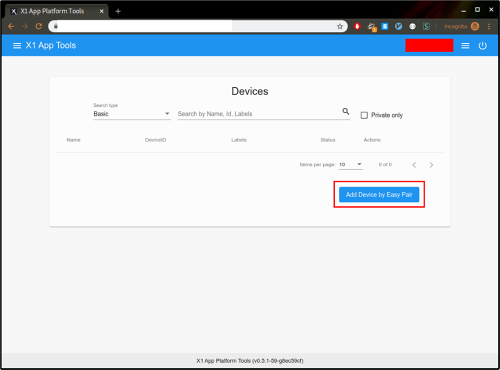
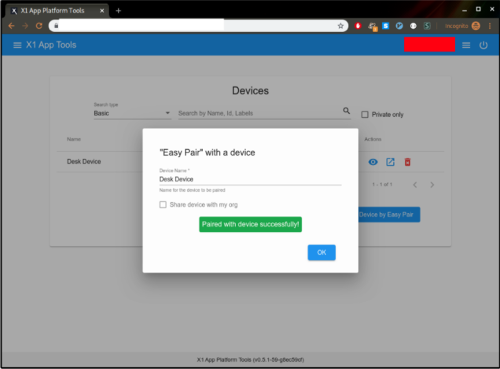
After logging in from the home page, click on “Manage Devices”. Find the button that says, “Add Device by Easy Pair” and click on that.
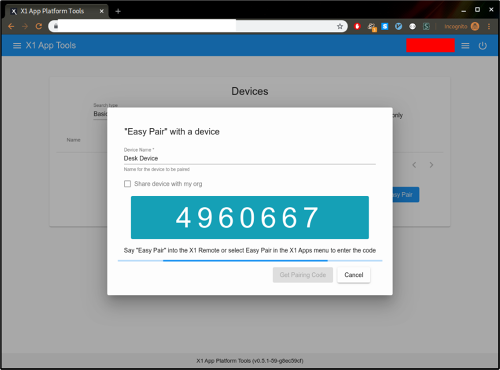
Enter a name for your device and choose whether you wish to keep it private or share it with the rest of your org, then click on “Get Pairing Code”. You’ll see a number provided to you that you must enter in the Easy Pair popup on your Set Top Box to complete the pairing.
When the pairing is successful, you’ll see a confirmation message on you Set Top Box and on the web page.
Accessing Easy Pair
You have a few options to access the Easy Pair app based on the configuration of your account and the hardware that you have. Some of these options may not be available.
Option 1: Open the Easy Pair app by saying “Easy Pair” into your voice remote (X1 & Flex Devices).
Option 2: Open the Easy Pair app via Easter Egg (X1 Devices only):
- On your remote, press “MENU”, “UP”, “UP”, “2”
- When the control code interface pops up, press “7”, “2”, “4”, “7” on your remote
Using a device
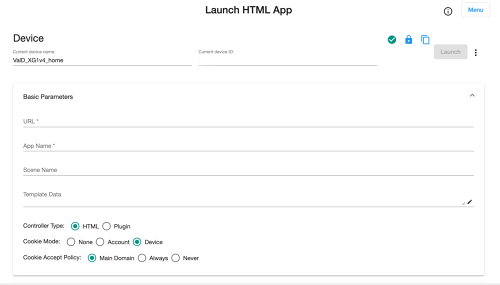
After logging in from the home page, click on “Develop and Test Apps”. When prompted, select the device with which you want to interact and the DurableAppID for your app. A partner manager will generate and provide a DurableAppID once your app is approved.
The DurableAppID, once available, can be selected under the App Name drop-down in the IBIS tool:

Enter any parameters you would like to test and then click on the “Launch” button.
Pairing & Unpairing Remotes
To pair a remote to your test device, please follow the instructions in the link below:
To unpair a remote from your test device, please follow the instructions in the link below: