RDK Appserviced Gateway is a development tool and set of APIs that assist with building Apps for the X1 ecosystem. This tool provides a web UI to manage and debug Apps installed on an RDK device. Through this tool, you can add your development devices, inspect their properties, view their operational status, and execute tests.
Visit our Development Device Matrix documentation for a list of devices compatible with this tool.
Overview
You use the gateway via a web interface served from the STB on port 8090, for example, if the STB has IP address 192.168.0.7 the URL is
http://192.168.0.7:8090
Once connected In the browser you should see a page like the following:
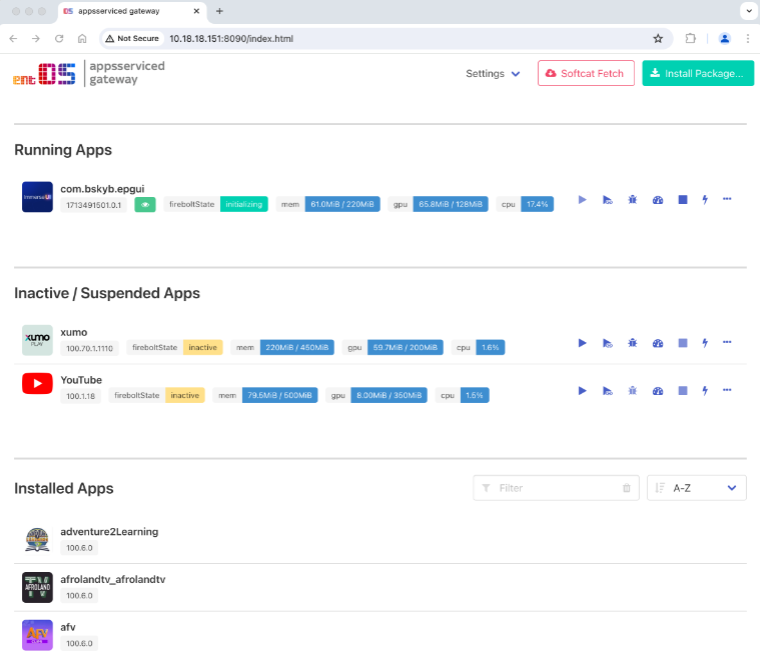
The main page shows all the installed Apps as cards with their details and a set of operations. An App will be in one of the self-explanatory sections; Running, Suspended, or just Installed (not executing).
Application Status
| Name | Description |
|---|---|
| App Version | The first tag in every entry is the version number of the app. |
| Firebolt State | The current firebolt state of the app. This is present even on builds without Ripple, as internally the AI code manages "firebolt" like state for FTL apps. |
| Memory Usage | The current memory usage and the memory limit. This is currently updated every second. |
| GPU Memory Usage | The current GPU memory usage and limit. This is currently updated every second. |
| CPU Usage | The current CPU usage, also updated every second. |
Application Options
| Icon | Name | Description |
|---|---|---|
 |
Launch App | Launches an App without any arguments. |
 |
Launch App with arguments / Send Deeplink | If App is not running displays Launch App box with options for providing launch arguments and other debugging settings. / If App is already running or suspend, it shows a Deeplink box to enter JSON to pass as a new deeplink to the App. |
 |
Launch App within Debugger / Attach Debugger | If App is not running displays Launch App box with options for debugging./ If App is already running then allows for dynamically attaching a debugger to it. |
 |
Terminate or Suspend App | For Apps that support suspend, this will move them to the suspended state. Non-Suspendible Apps will be terminated. |
 |
Terminate App | Terminates an App ignoring whether the App is suspendible or not. |
 |
Take Screenshot | Downloads a screenshot of the App. |
 |
Reset App Data | Clears all the persistent data for an Application. If the App is running it will be cleared when the App is terminated. |
 |
Download Package | Will fetch the package from the STB and download onto your local machine. |
 |
Uninstall Package | Uninstalls the package from the STB. If the App is currently running it will be uninstalled when it is terminated. |
Installing Packages
To install a widget click the Install Package... button in the top left of the page, that'll show a dialog box which can be used to drag-and-drop either a directory or a file to install. The contents of the directory or the file will be pushed to the STB, optionally signed and then installed as a widget on the box (provided it contains a valid config.xml file).
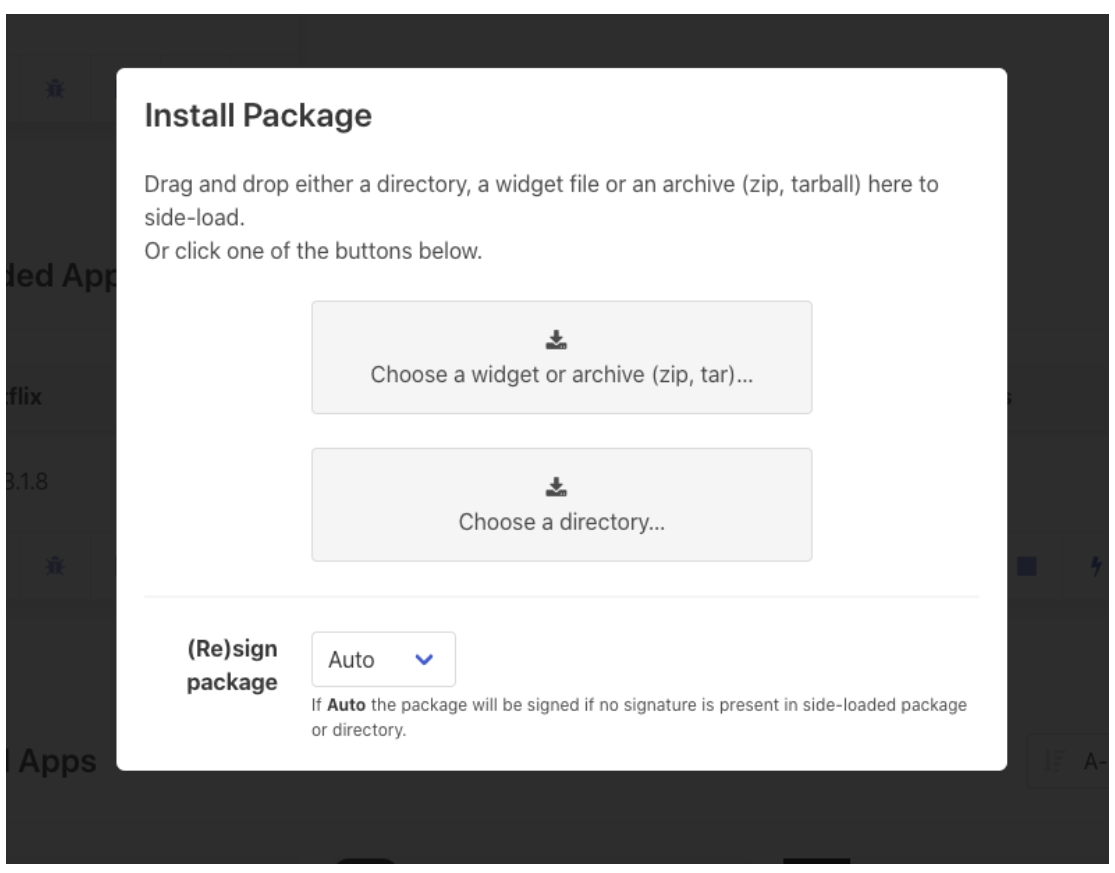
File Upload
The package installer supports signed and unsigned widget files, as well as zip and tar archive files. For tarballs it supports gzip, bzip and lz compression. For non-widget file uploads, the service will convert the contents of the archive to widget format and optionally sign it as part of the install.
Directory Upload
A directory representing a widget can also be uploaded, the directory must contain a valid config.xml file and may or may not have a signature1.xml file. The contents of the directory will be compressed into a widget and optionally signed as part of the install.
Auto-Signing
Prior to dropping a file/directory or selecting one using the buttons; you can set the signing mode, to one of the following options:
| Auto | Will Sign the widget/archive/directory if no signature1.xml file is found, otherwise leave unchanged. |
|---|---|
| Always | Will always generate a new signature for the widget prior to install. |
| Never | Will never sign the widget, even if no signature1.xml is found. |
It's important to note that signing is performed using the debug certificates and keys, meaning Apps signed by the gateway will only work on debug (VBN) builds, they will not work on PROD builds.
Softcat
On builds with Softcat enabled, clicking the Softcat Fetch button in the top right of the page will trigger a forced update. This may fail if you've disabled Softcat refresh in the settings. Note that a Softcat refresh will likely overwrite any side-loaded apps.
You can set the Softcat URL via Settings → SoftCat URL.., this can also trigger an automatic Softcat refresh.
Settings
Settings to control the UI and STB are available in the Settings dropdown. Unless otherwise stated, the settings do not persist across an STB power cycle or, in the case of UI settings, a page refresh.
Show Thumbnails
Turns on thumbnail screenshots of Apps in the running state. The thumbnails are only low resolution and updated after ~3 seconds. By default, thumbnails are disabled because they put slightly more load on the window manager/compositor running on the STB.
Force All Apps Launchable
Makes all Apps launchable, even ones that are blocked due to missing entitlements or are not present in the signed softcat. If side-loading Apps, you'll probably want this option enabled.
SoftCat URL
Launches a dialog to get and set the current SoftCat URL. Unlike most other settings, this persists across a reboot.
Enable SoftCat fetch and sync
Enables the periodic background SoftCat fetch, it is enabled by default. If you are side-loading Apps, you may want to disable this option to stop a background SoftCat refresh from uninstalling your side-loaded Apps and replacing with versions from SoftCat remote servers.
Allow SoftCat to uninstall Apps
If set, the periodic background SoftCat fetch will uninstall any Apps installed on the STB that aren't in the remote SoftCat. This is enabled by default.
Show debug overlay
Turns on the debugging overlay in the window manager on the STB. This may be useful for measuring graphic performance and seeing how the composition of Apps is laid out.
Enable split mode
Switches the window manger to split display mode, which shows all the window manager clients (Apps and players) in a separate window on screen, rather than all composited together.